Installation & Update
Please refer to ANSVIS system requirement and installation tips to prepare the hardware that suit your applications.
Ensure that the CPU and GPU drivers are up-to-date to guarantee optimal performance and compatibility.
Recommended tools for driver updates:
Some antivirus or endpoint security software may falsely flag the ANSVIS installer as a potential threat, which can disrupt or block the installation process; therefore, it is recommended to review any alerts carefully and temporarily disable antivirus protection or add the installer to the trusted list to ensure the installation proceeds without interruption, then re-enable protection afterward.
Installation
ANSCENTER Portal is a one-stop shop for managing your own software licenses and download latest software version.
For PC with internet connection
With internet connection, ANSVIS Installer will auto-download and update related runtime engine during installation (if required)
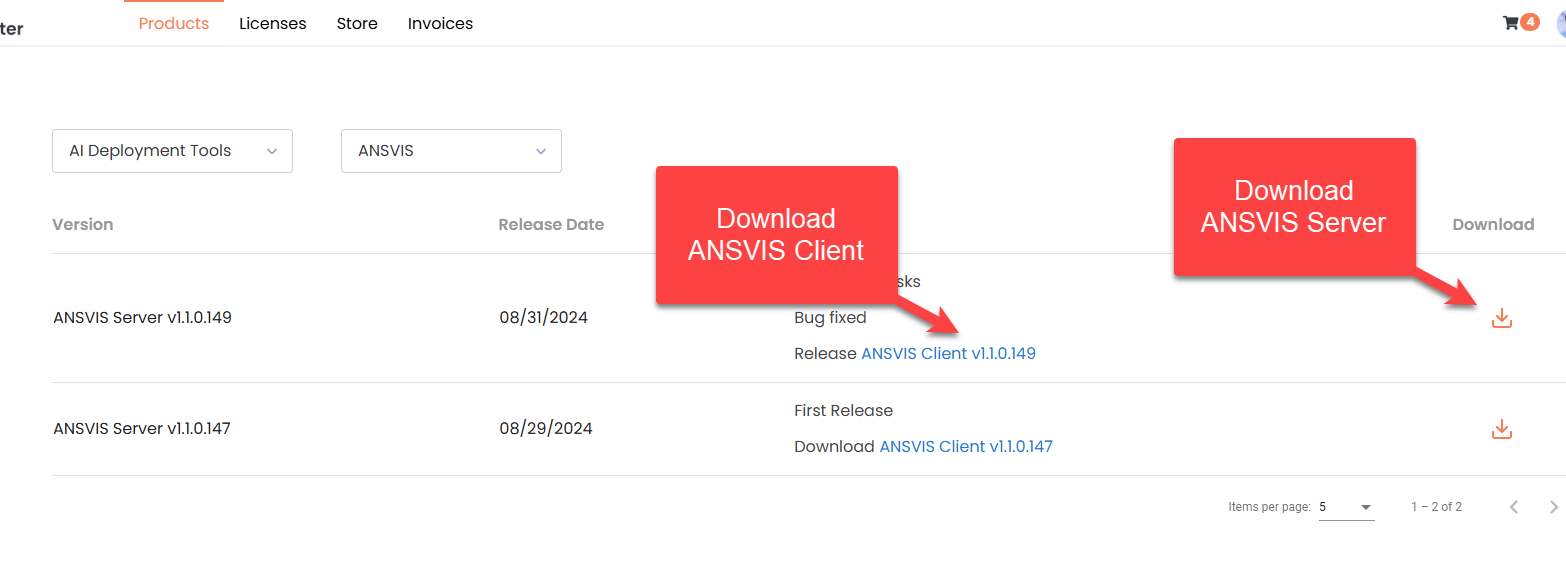
Go to Product> AI Deployment Tools> ANSVIS to download and install ANSVIS and ANSVIS Server
For PC without internet connection
Without internet connection, you need to manually download all related installer files to complete installation.
- Go to
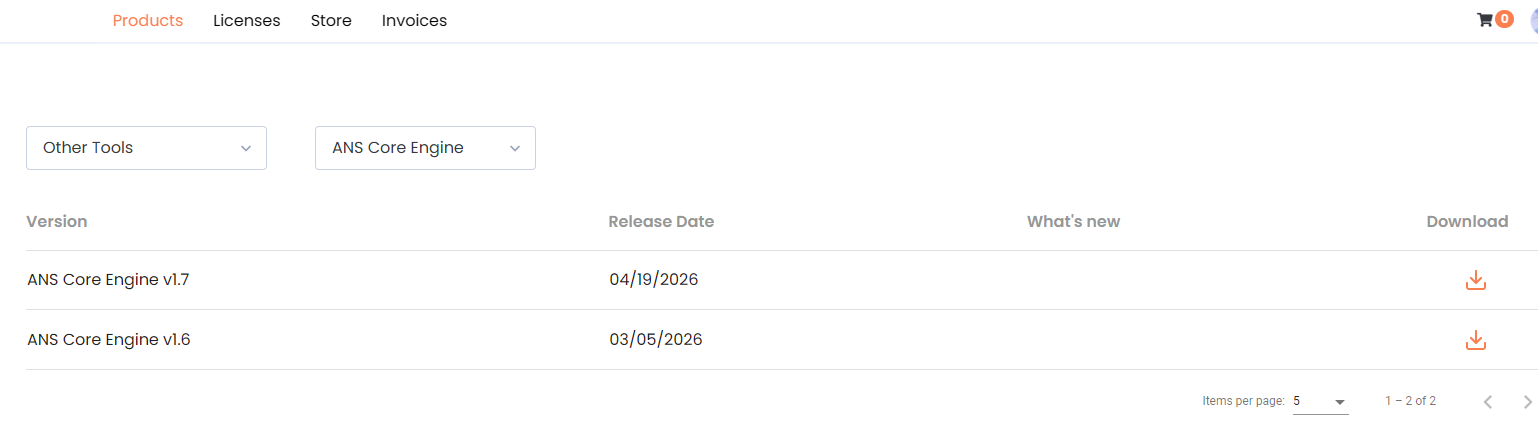
Product> Other Tools> ANS Core Engineto download and installANS Core Enginefrom (one-time only).
- Go to
Product> AI Deployment Tools> ANSVISto download and installANSVISandANSVIS Server
- Install ANSVIS and ANSVIS Server with administrator role to ensure proper software functions
- Default installation directory is recommended
- A system reboot is recommended after finishing installation
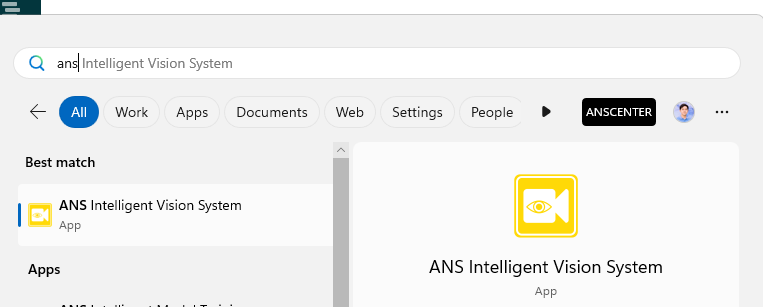
Once installation is completed, the ANSVIS Server will auto-run as a background process

And the ANSVIS can be launched as a desktop application
Update ANSVIS
Uninstall ANSVIS and ANSVIS Server before updating new version to ensure stability

You can update ANSVIS using one of the two methods below:
Option 1: Download from ANS Portal
Manually download and install the latest versions of ANSVIS and ANSVIS Server from ANS Portal
Option 2: Check for update via ANSVIS Interface
Open the ANSVIS and navigate to Settings > Check for Update.
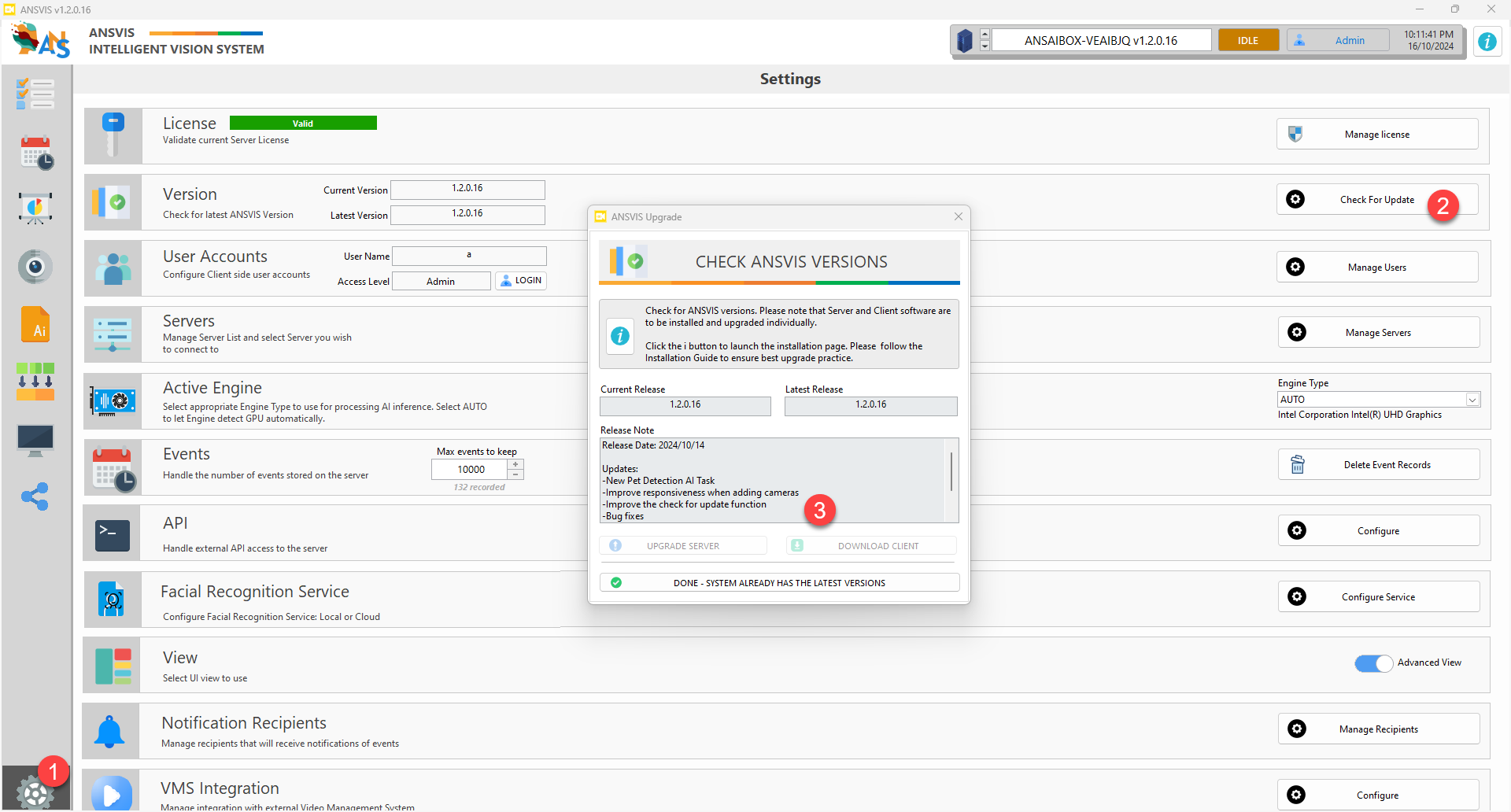
In the Check ANSVIS Versions dialog, if a newer version is available:
- Click
Download Client, you will need to install ANSVIS manually in the Client machine. - Click
Upgrade Server, The new server version will be downloaded and installed automatically.
During the server update, a downloading dialog will appear. You can close it and continue interacting with the server.
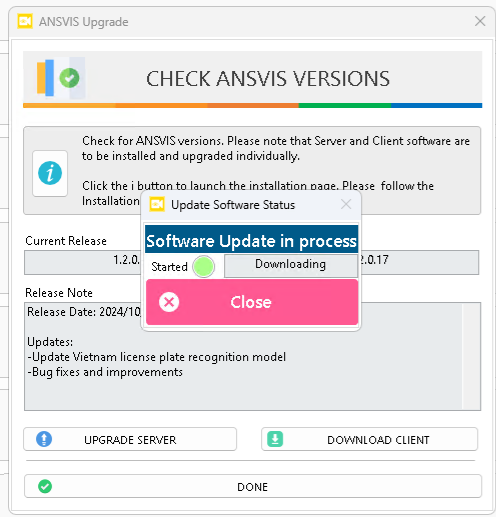
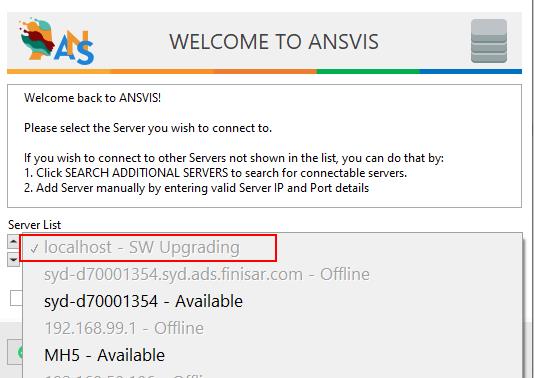
Once the download completes, the server will install the new version. You’ll be disconnected until the update is finished.
Downgrade ANSVIS
In case you need to downgrade ANSVIS, please uninstall all ANSVIS, ANSVIS Server and Runtime Engine. Then follow standard installation steps to reinstall ANSVIS.