ANSVIS Tips
Running ANSVIS 24/7
If ANSVIS Server need to run 24/7, it's recommended to do the following actions to avoid interuption:
- Disable
Window Updateto avoid auto-update and auto-restart
- In
Power & Sleepsetting, disable any Screen Off, Sleep or Button functions that might cause system shutdown or go to sleep
Optimizing Computing Power for ANSVIS
Windows normally distributes computing resources automatically, but for performance‑sensitive workloads like ANSVIS, you may want to manually increase priority and GPU performance. This guide walks you through all key optimizations:
1. Set ANSVIS Service to High Priority (Windows Task Manager)
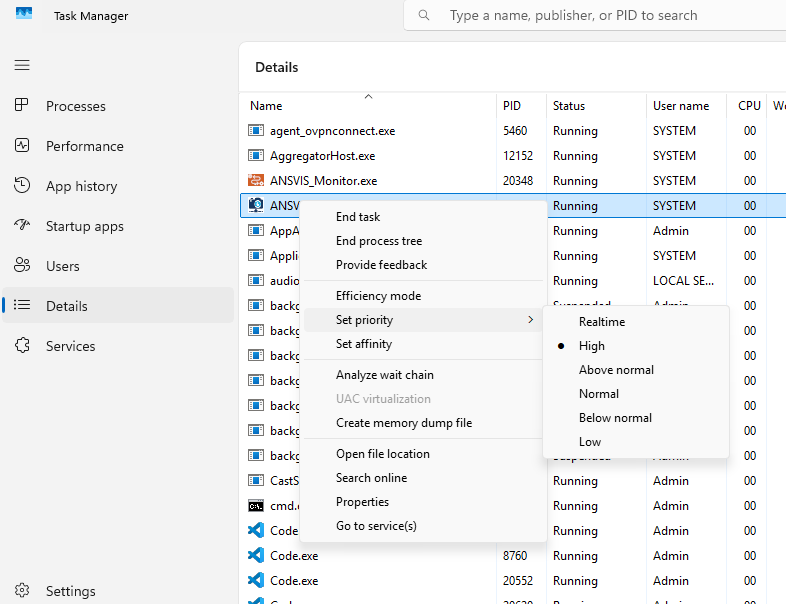
- Open
Task Manager - Go to
Detailstab and findANSVIS_Service - Right-click > Set Priority > Select
High
caution
Do not choose Realtime — it may affect system stability.
2. Set NVIDIA Power Management Mode to Maximum Performance
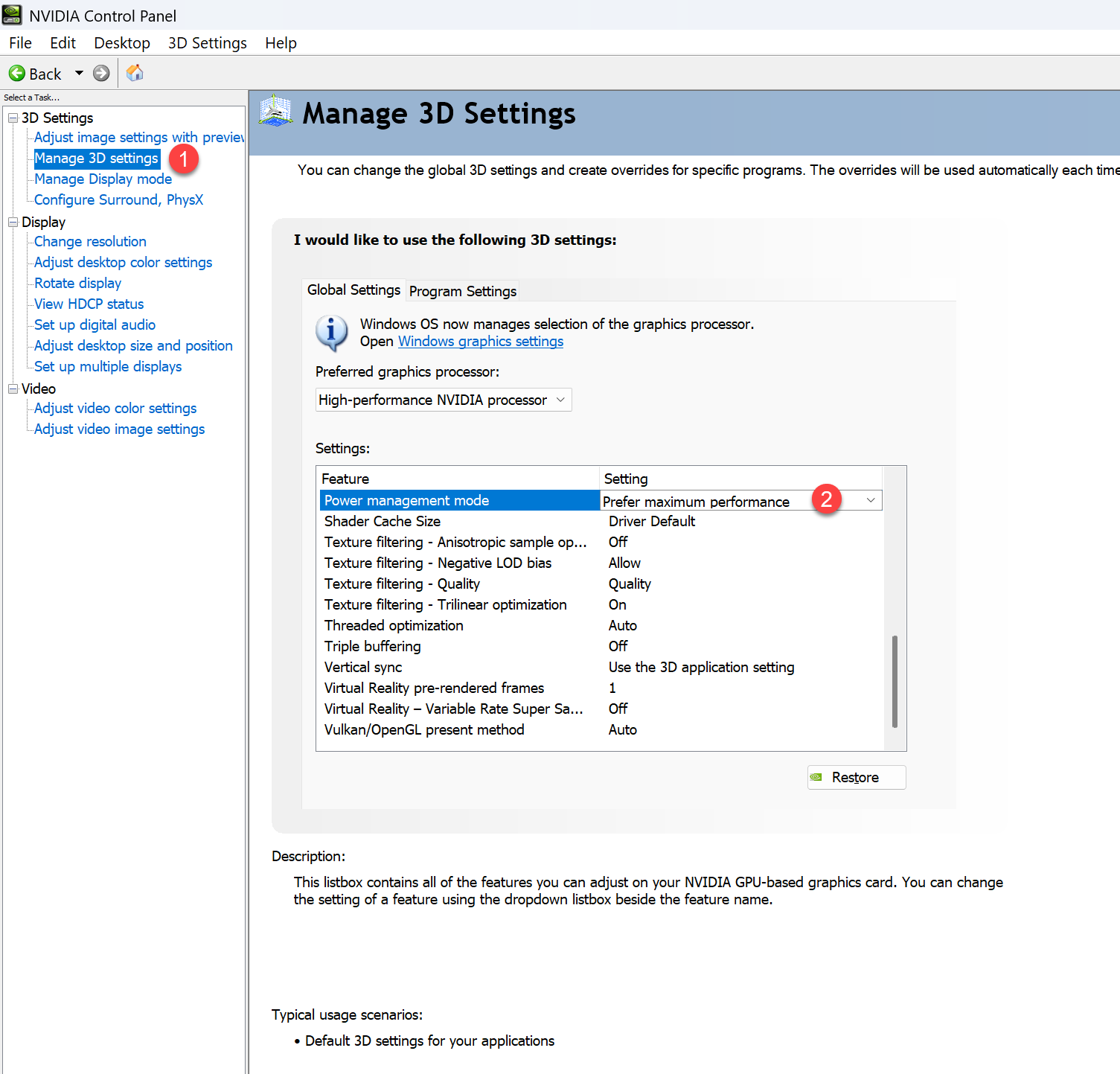
- Open
NVIDIA Control Panel. - In the left menu, go to
Manage 3D settings. - Under the
Global SettingsorProgram Settingstab: - Find
Power management modeand change it toPrefer maximum performance. - Click
Apply.
This keeps the GPU from downclocking during heavy ANSVIS workloads
3. Lock GPU Clock
- Open
Terminaland check for supported clock speeds using the following command
nvidia-smi -q -d SUPPORTED_CLOCKS
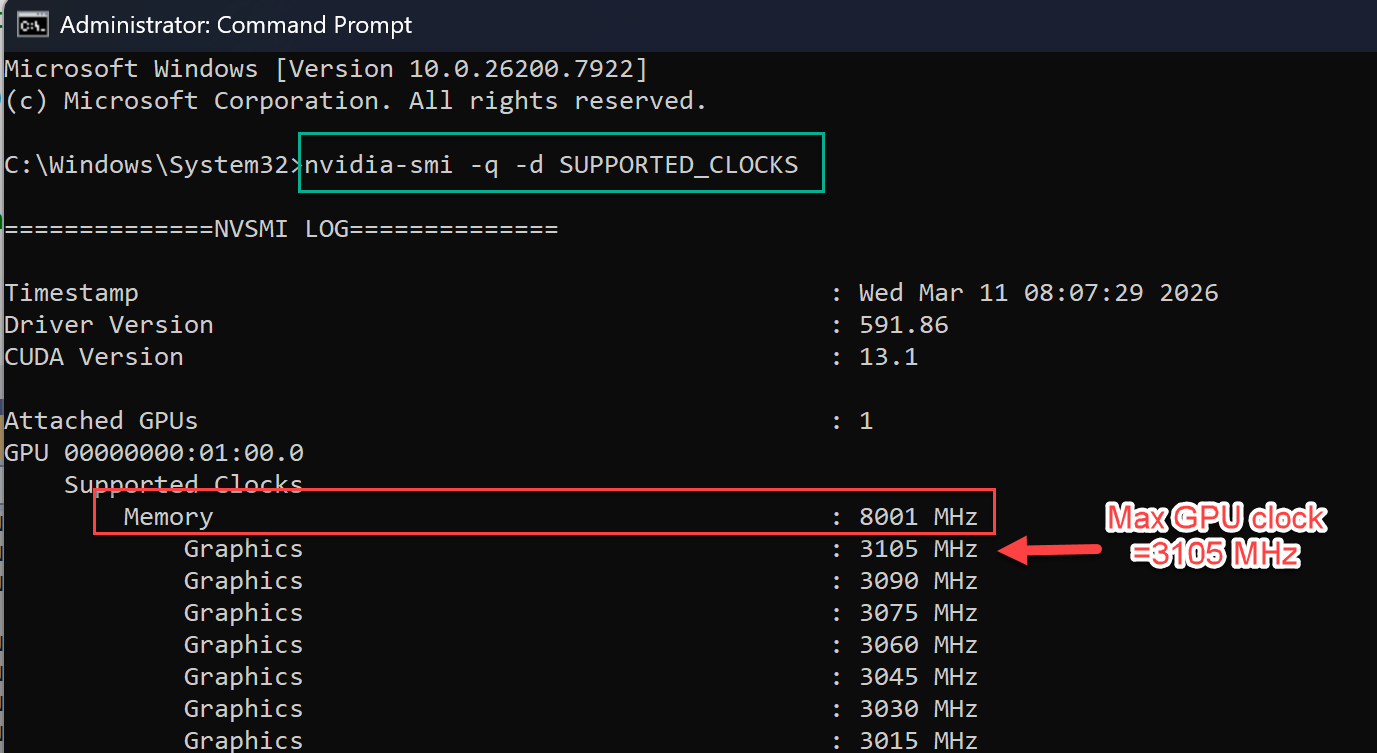
- Set GPU Clock to ~75-80% of Maximum Clock using the following command
nvidia-smi -lgc 2400,2400
Example
For example, if your GPU supports up to 3000 MHz, setting ~75–80% equals 2250–2400 MHz.